How to Merge PDF Files Online for Free (Step by Step)
Combine several PDFs into one file in your browser: put them in order, merge in seconds and download. Free, no sign-up, and your files are never uploaded.
By FreeToolsHub Editorial TeamPublished5 min read
Sooner or later almost everyone has to turn a pile of separate PDFs into one file. A job application asks for a single document that holds your CV, ID proof and certificates. Your accountant wants all twelve invoices as one attachment. A study pack arrives as ten chapters. This guide shows how to merge PDF files online for free with the Merge PDF tool, what to check before you press the button, and how to fix the usual problems.
Merge PDF files in four steps
- Open the Merge PDF tool.
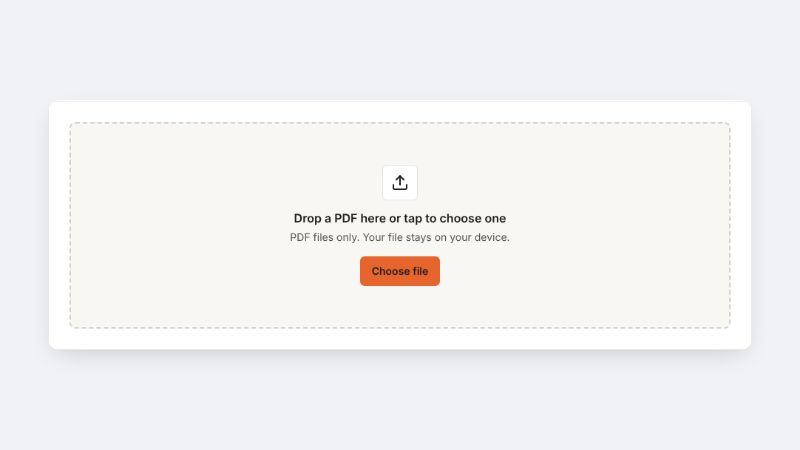
- Drop two or more PDF files onto the upload box, or tap the box and choose them. You can select several files at once.
- Check the list. Each file shows its number of pages and its size. Use the up and down arrows to put the files in the order you want, and the bin button to remove one.
- Press Merge PDFs, then press Download PDF to save the combined file as
merged.pdf.
The merging happens inside your browser. Your documents are not uploaded to a server, which matters when the files hold ID copies, bank statements or contracts.
What merging actually does
A PDF is a container of pages. Merging copies the pages of the first file into a new container, then the pages of the second, and so on. Text, images and fonts are not redrawn or compressed, so the merged document looks exactly like the originals placed back to back. That is the main difference from tools that convert your pages into pictures: after a merge you can still select, copy and search the text.
Two things are not carried across, because the result is a fresh document built from pages alone: bookmarks and the interactive form fields of the original files. If you need to keep a filled-in form working, merge a flattened copy or keep the form as a separate file.
Why use an online merge tool instead of the alternatives
- No installation. It works on a phone, a tablet or any computer with a modern browser.
- No account and no watermark. You do not sign up, and the output is a clean file.
- Privacy. Files stay on your device. Many online services upload your documents to their servers, so check this before you merge anything sensitive.
- Order control. You decide where every file goes before merging, so you do not have to fix the order afterwards.
Get the order right before you merge
The most common mistake is merging first and noticing later that a certificate sits before the cover letter. Two habits help.
- Name files so they sort sensibly. Names such as
01-cover-letter.pdf,02-cv.pdfand03-certificates.pdfappear in the right order when you add them together. - Look at the list once more. The page counts shown beside each file also let you check the total: if you expect 12 pages and the list adds up to 15, a file is probably the wrong one.
If you only notice a problem after merging, you do not need to start again. Open the merged file in Organize PDF to move, delete or duplicate individual pages, or use Split PDF to pull out a range of pages as a separate file.
Common problems and how to fix them
A file is flagged as password protected. The tool cannot merge a locked PDF directly. Remove the password first with Unlock PDF, which needs the password, then merge the unlocked copy.
The merged file is too big to email or upload. Merging does not shrink anything, so a merged file is roughly the sum of its parts. Run the result through Compress PDF. Read the note in that tool first: it redraws pages as pictures, so text in the compressed copy is no longer selectable. Keep the original merged file as well.
You have photos or scans, not PDFs. Turn them into a PDF first with JPG to PDF, then merge that file with the others.
The page sizes differ. A merged file keeps every page at its own size, so an A4 page can sit next to a letter-size page. That is normal. If a portal insists on one size, check its instructions before you submit.
Practical uses
- Applications and visa files: bundle a cover letter, ID, certificates and photographs into the single file a portal accepts.
- Business paperwork: join a month of invoices or statements into one document for your accountant.
- Study material: combine notes and handouts into one revision pack that is easier to search.
- Scanned documents: put pages that were scanned one at a time into a complete document.
Tips for the best result
- Do the merge on a computer if the files are large. Everything is processed in your browser, so a phone with little memory can struggle with hundreds of megabytes.
- Keep your original files until you have opened the merged one and checked the page order and the page count.
- Give the merged file a clear name when you save it, such as
Your-Name-Application.pdf, rather than leaving it asmerged.pdf.
Frequently asked questions
Is there a limit to how many PDFs I can merge? There is no fixed limit. The practical limit is your device's memory.
Will merging reduce the quality? No. Pages are copied as they are, without being re-rendered or compressed.
Can I merge password-protected PDFs? Not directly. Unlock them first, then merge the unlocked copies.
Does the tool upload my files? No. It runs in your browser and the files never leave your device.
Ready to try it? Open Merge PDF, add your files and have one clean document in a moment. If the result needs to be smaller, the guide to compressing images explains how quality and file size trade off.